




常見問題
使用Live TV Fernsehen IP TV應用程式,您可以在購買應用程式時立即獲得一個月的时间折扣。然後,您可以自由決定是否透過訂閱延長應用程式(與Live TV IPTV Stream相同的費用)。
iOS (iPhone/iPad)
https://itunes.apple.com/de/app/id995947227?mt=8
macOS (Mac)
https://itunes.apple.com/de/app/live-tv/id715619301?mt=12
tvOS (Apple TV)
https://itunes.apple.com/de/app/id1051033237
If you bought a subscription for your iPhone, you can also run the subscription on your own iPad! As long as the devices are yours, there is no limitation on the number of devices that can run the subscription.
On all platforms, you can test the apps first. Each app runs independently. In-app purchases are purchased separately for each platform.
For the use of Live TV on iPhone / iPad, Mac and Apple TV there is TV Pro GOLD ALL-IN-1.
為什麼有些頻道在國外不可用
電視廣播公司自行決定他們的流是否在國外可用。因此,我們無法聲明特定頻道是否可以在國外接收。
如何檢查應用程式中的可用性
在某些情況下,可用性甚至可能因節目而異。因此,我們內建了一個偵測功能:頻道名稱旁边的徽章指示狀態。
- 藍色徽章:流可能可用
- 灰色徽章:流不可用
使用德國網際網路地址從國外觀看
使用應用程式VPN Tracker World Connect,您可以從國外連接到德國網際網路地址以觀看電視。此應用程式可以免費測試 24 小時:
https://itunes.apple.com/de/app/vpn-tracker-world-connect/id1117424189?mt=8
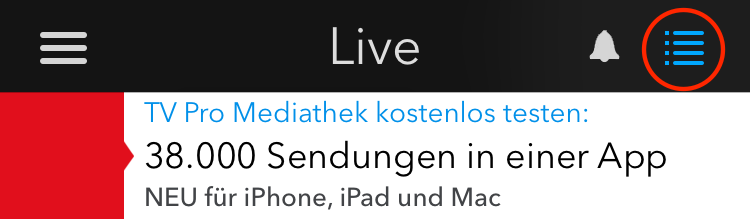
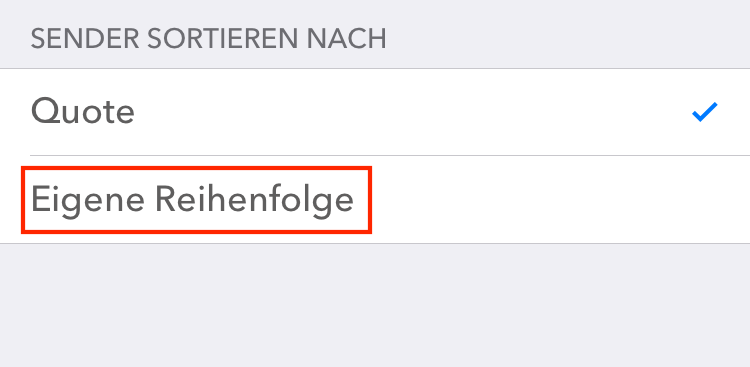
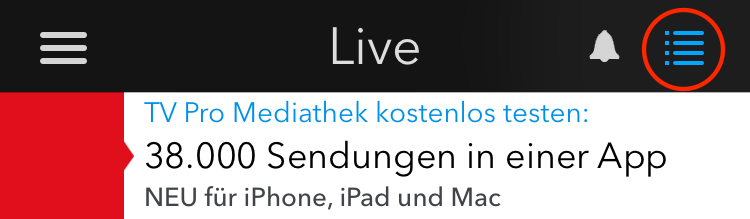
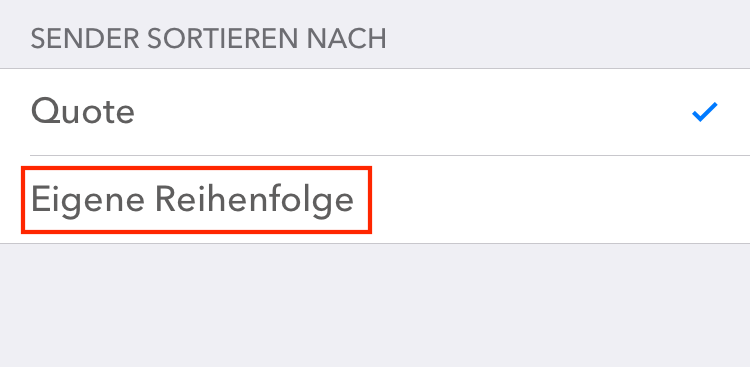
選擇「自訂順序」選項:
可以透過拖放來設定電台的順序。前往「設定」>「發射器」,然後排列順序。
在那裡,您也可以隱藏您不感興趣的電台。
您也可以永久停用此選項。為此,請從「設定」中選擇「背景播放」。
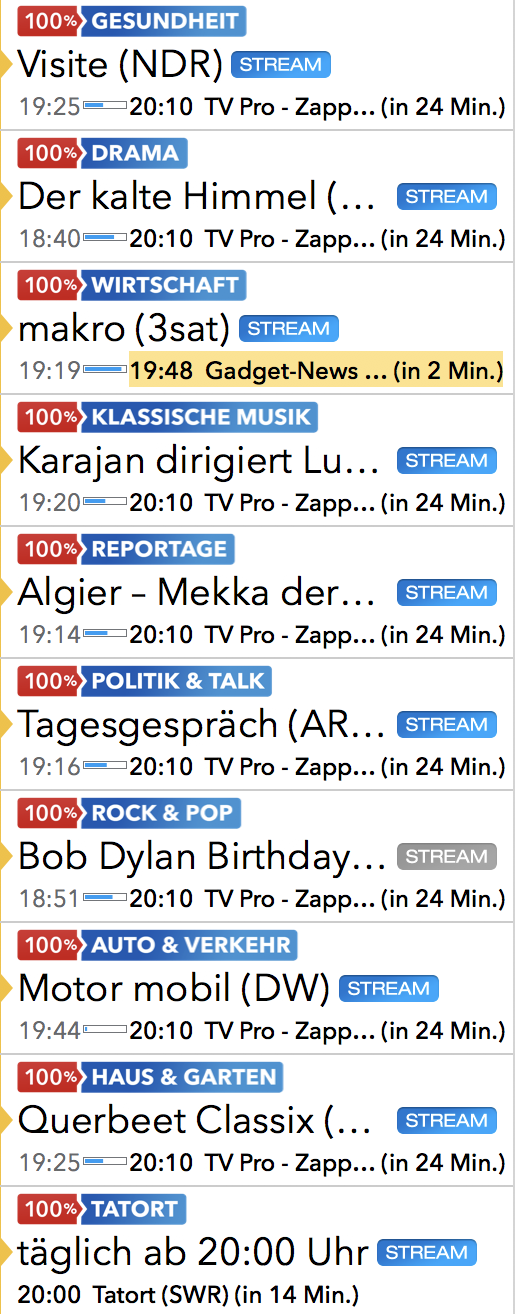 Live TV Nutzer erhalten diese "100%" Kanäle täglich frisch im Rahmen des jährlichen Paketes "Mein Live TV".
Aktuell gibt es 16 "100% Kanäle":
Live TV Nutzer erhalten diese "100%" Kanäle täglich frisch im Rahmen des jährlichen Paketes "Mein Live TV".
Aktuell gibt es 16 "100% Kanäle":- 100% Neu & beliebt
- 100% Tatort (täglich ab 20:15 Uhr)
- 100% Drama
- 100% Auto & Verkehr
- 100% Reise & Fernweh
- 100% Reportage
- 100% Dokumentation
- 100% Haus & Garten
- 100% Gesundheit
- 100% Kochen
- 100% Wirtschaft
- 100% Politik & Talk
- 100% Talkshow
- 100% Rock & Pop
- 100% Klassische Musik
- 100% Comedy
- Dieses Video darf aus rechtlichen Gründen nur in Österreich wiedergegeben werden
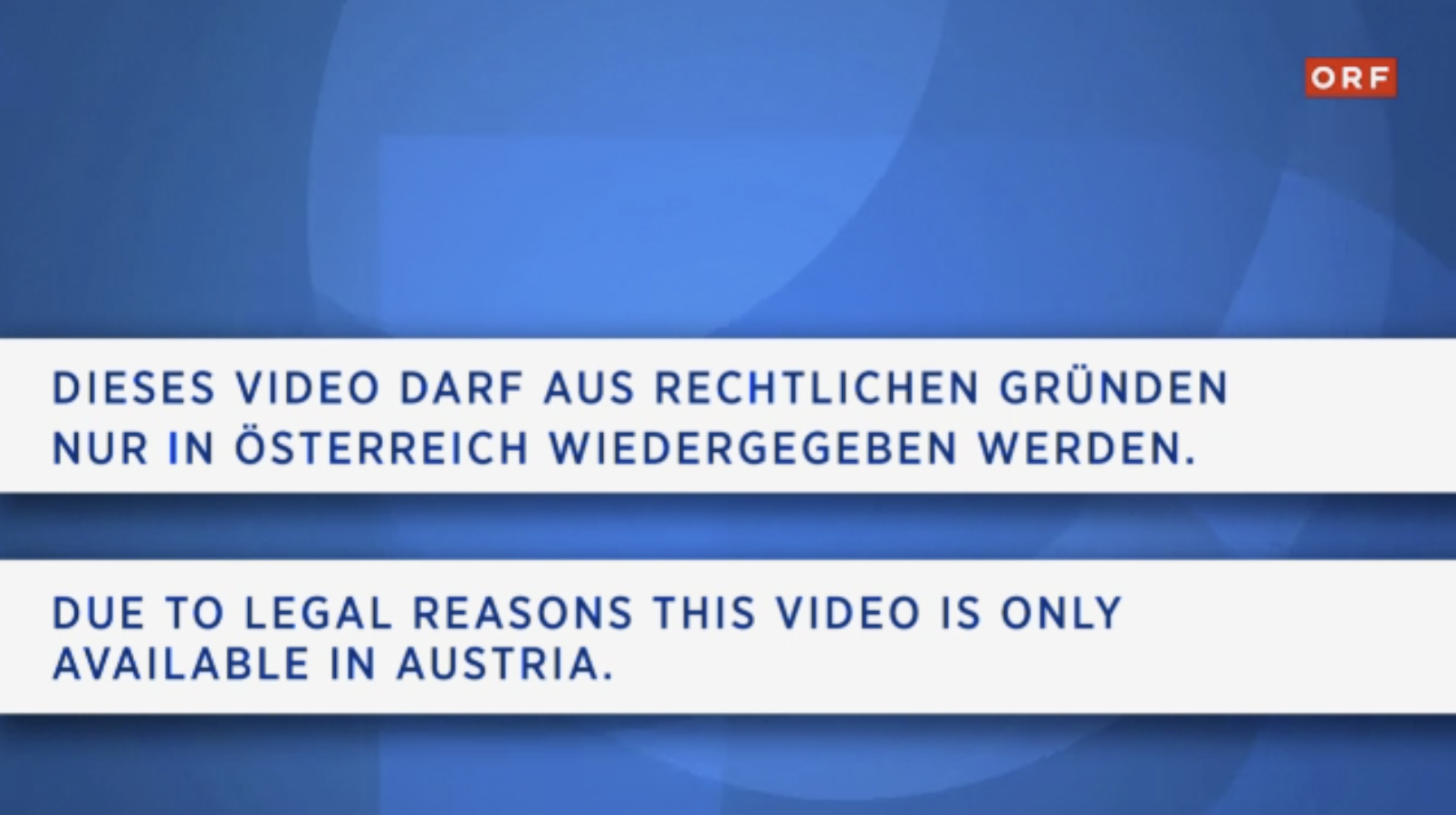
Grund: Die Sendung wird nur in Österreich ausgestrahlt, aber nicht die anderen Ländern, wie Deutschland. - Der von Ihnen gewünschte Live-Stream ist derzeit nicht verfügbar
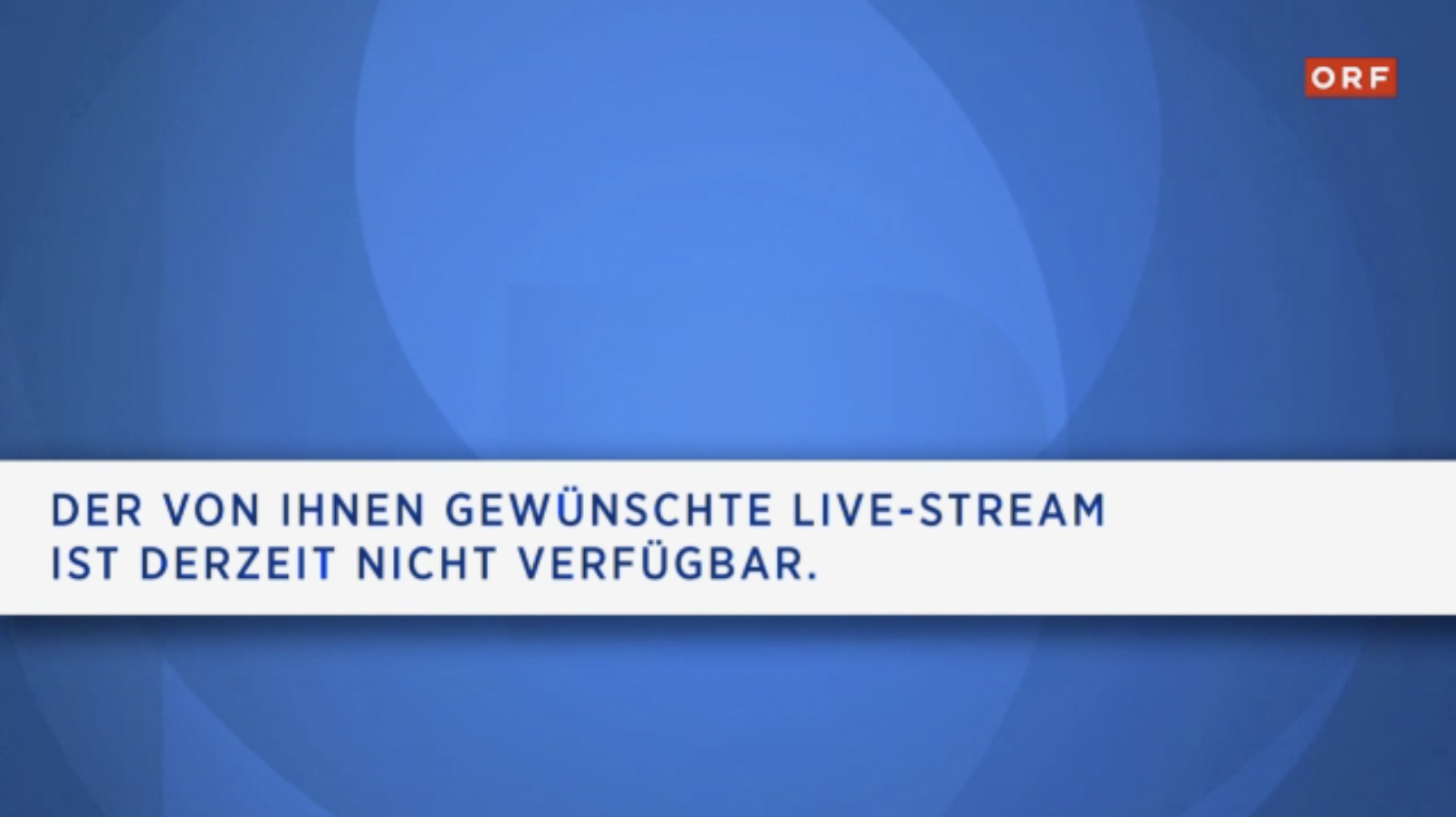
Grund: Die Sendung wird generell nicht im Internet ausgestrahlt, egal ob man in Österreich ist oder nicht.
- 從設備中刪除 Live TV 應用程式。(請記住要在 Mac 上清空垃圾桶)
- 開啟 AppStore 並從 AppStore 重新下載 Live TV 應用程式
1. 檢查購買是在哪個應用程式中進行的
請在第一步檢查您在哪個應用程式和哪個平台上購買了該套件。您可以在購買收據中找到應用程式名稱。 或者,您可以透過在App Store設定中查看以下內容來檢查您在哪個應用程式中購買了它:App Store > 焦點 > 最底部在“Apple ID:xxx” > 顯示Apple ID > 訂閱應該選擇並啟用一個套件。
2. 開啟應用程式並將產品狀態轉移到TV Pro ID
請在下一步開啟您購買該套件的應用程式。- 請執行以下步驟:
- 1. 開啟應用程式
- 2. 在選單中開啟商店
- 3. 使用您的TV Pro ID登入,或者如果您還沒有TV Pro ID,請建立一個新的TV Pro ID(免費)
- 4. 點擊“恢復購買”
3. 在另一個裝置或另一個應用程式中恢復套件
要將您的套件轉移到您的第二個裝置或另一個版本,請按照以下步驟操作:- 在目標裝置上開啟對應的應用程式
- 如上所述,前往商店設定並使用您的TV Pro ID登入
- 點擊“恢復購買”
- 現在您的套件也應該出現在這裡
主畫面 > 設定 > 流動網絡
然後向下捲動到最底部,並在該處關閉“Wi-Fi Assist”。
2. 此外,您可以完全禁止應用程式在那裡使用流動數據。
- TV Pro
- Live TV
- TV Pro Mediathek
- 保護購買
- 轉移購買
- 使用同步等功能。
TV Pro
TV Pro for iPhone / iPad 設定 > 帳戶(“未登入”)> 登入 ►觀看教學 TV Pro Classic for iPhone / iPad 齒輪(設定)> TV Pro Gold > 登入 TV Pro for Apple TV 選單 > 設定 > 檢視套裝 > 使用TV Pro ID登入Live TV
Live TV for iPhone / iPad 商店 > 登入或建立使用者帳戶 Live TV for Mac Live TV > 使用TV Pro ID登入... Live TV for Apple TV 選單 > 商店 > 使用TV Pro ID登入TV Pro Mediathek
TV Pro Mediathek(也適用於Kids Edition)for iPhone / iPad 更多 > 設定 > TV Pro ID > 登入 TV Pro Mediathek for Mac TV Pro Mediathek > 使用TV Pro ID登入... TV Pro Mediathek for Apple TV 選單 > 設定 > 檢視套裝 > 使用TV Pro ID登入- 刪除目前安裝的應用程式
- 在設定 > iTunes 和 App Store 中使用您用於購買訂閱的 Apple ID 登入
- 現在從 App Store 重新安裝該應用程式
- 在應用程式中,在 Store 中,選取「恢復購買」選項
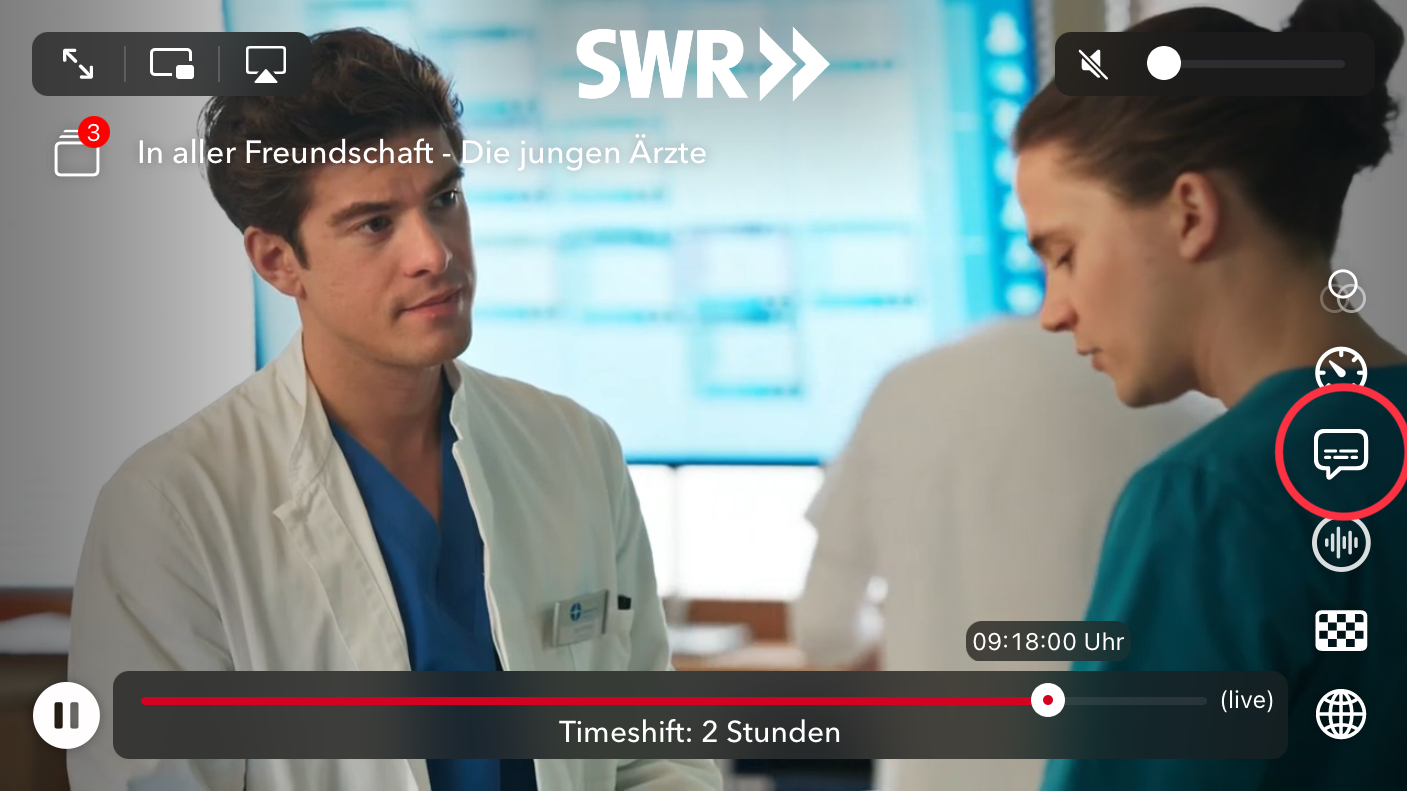
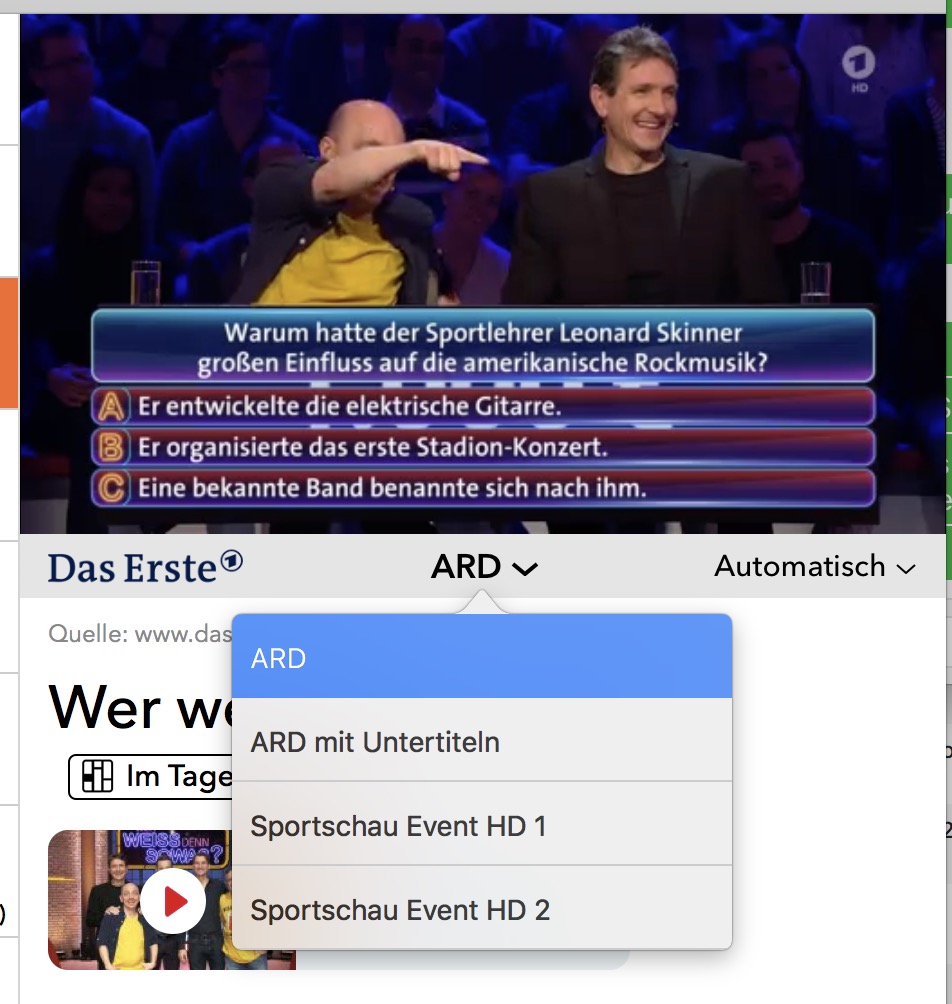 更新 2021:從現在開始,一些頻道(尤其是 ZDF Group)會以正常串流的形式傳送字幕。若要啟用字幕,請使用播放器的疊加層,點擊語音氣泡:
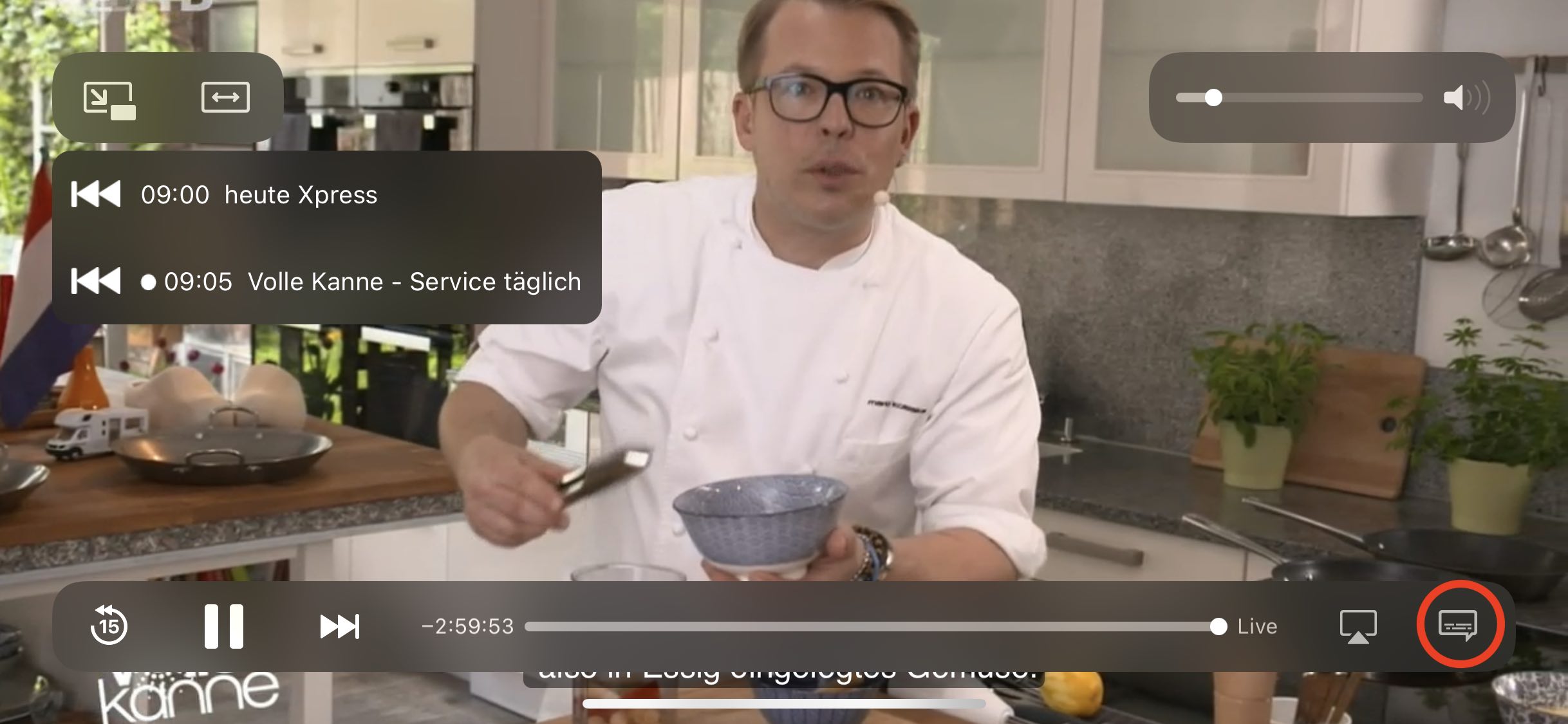 在「字幕」區段中,您可以開啟或關閉對應的語言: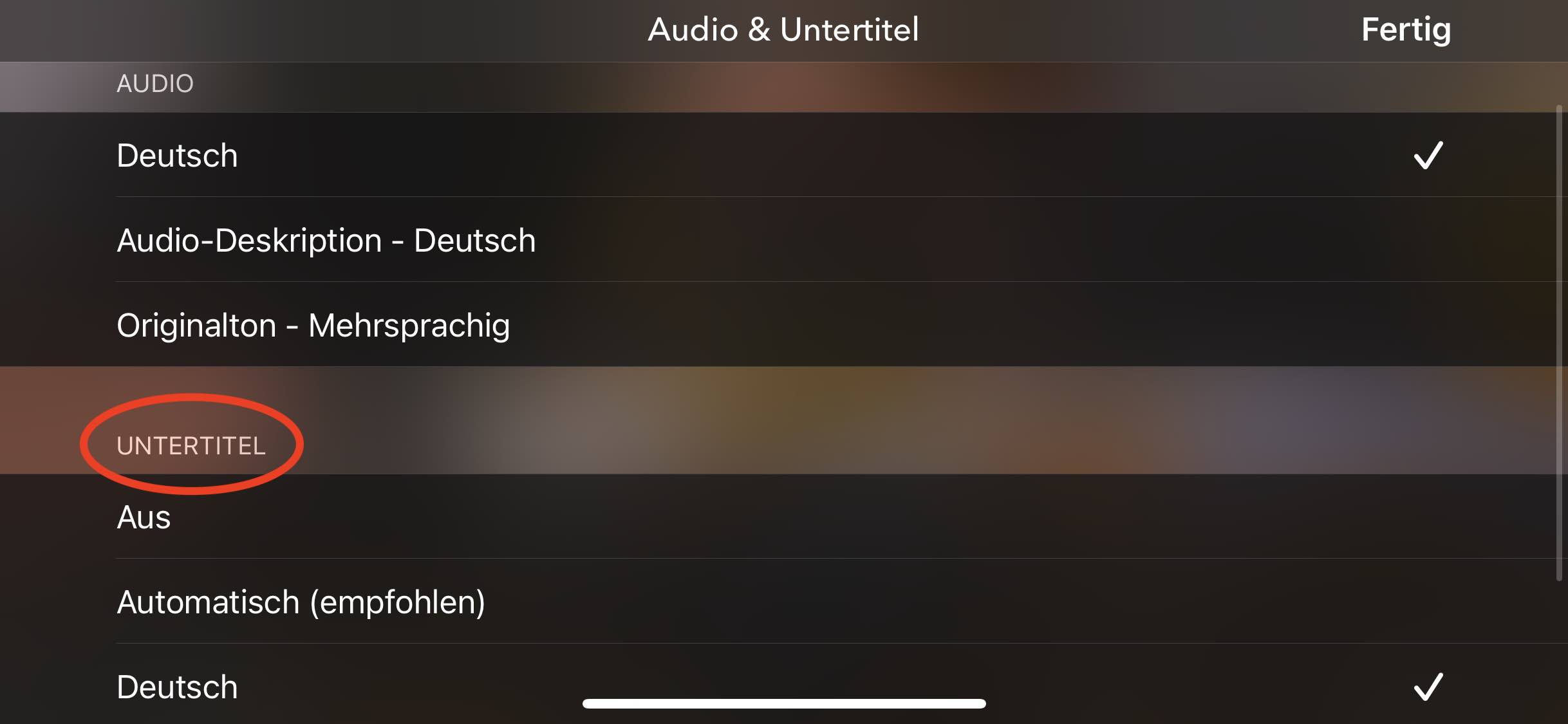
‣ 在應用程式中建立一個 TV Pro ID,然後選擇「回復購買」
‣ 現在開啟 TV Pro GOLD ALL-IN-1 包裹中的其他應用程式,並輸入相同的 TV Pro ID。
‣ 使用您的 TV Pro ID 登入將自動識別 TV Pro GOLD ALL-IN-1 包裹。
如果遇到問題,請從所有裝置中刪除該應用程式,並從您最初購買 TV Pro GOLD ALL-IN-1 包裹的裝置開始。然後按照上述步驟操作。
- 建立您的新 TV Pro ID
- 使用您的新 TV Pro ID 登入用於購買套裝的應用程式
- 選擇「還原購買」
- 確認您想要將套裝轉移到新的 TV Pro ID
You can add your own streams in Live TV that are specified in an M3U file. This M3U file consists of a list of "m3u8" streams. You create this M3U file according to your wishes and then place it on your own web server. In the home network, a local web server is sufficient, as is often supplied with NAS drives. Then you add the M3U URL in Live TV. Done!
How does the mapping to the channels work?
The m3u file must use exactly the names for the stream names that Live TV uses. You can find the exact names of the channels in Live TV under "Settings" > "Channel Selection".
I have added a stream in my m3u file, but unfortunately it does not appear. Why?
You can only specify names in the M3U file that also exist in Live TV. All other names are currently ignored by the app and not displayed. In addition, you must ensure that your streams are in the "m3u8" format. Other formats are not supported (rtmp, etc.)
Where can I find my own streams in Live TV now?
Own streams are assigned to the existing channel names. Switch to the "Stream" tab, where the channel names will appear if you have assigned a stream.
Who is the manual addition of own stream sources suitable for?
For all those who are a little more familiar with the stream subject and for whom terms like M3U are not Chinese. For all those who use a TV receiver or television in the home network that can stream the TV program further in the local network (e.g. in higher resolution) and who want to receive this program with Live TV. We therefore do not provide technical support for this feature. We explicitly point out that this feature is intended for this personal use case.
 在 Apple TV 上,您可以向右滑動,然後向下滑動以切換到此選單。
如果應用程式行為不正確,可以在 iPhone 或 iPad 上按以下方式重新啟動它:
在具有 Face ID 的 iPhone / iPad 上:
- 返回主螢幕
- 從螢幕底部向上滑動並按住以顯示應用程式切換器
- 向上滑動要關閉的應用程式以關閉它
在具有主按鈕的 iPhone / iPad 上
- 返回主螢幕
- 雙擊主按鈕以顯示應用程式切換器
- 向上滑動要關閉的應用程式以關閉它
Apple 近幾天對應用內購買和訂閱的技術基礎設施進行了一項更改。為了應對此情況,TV Pro 應用系列的應用程式需要更新。
我們已向 Apple 提交了對應的更新,並希望 AppStore 團隊盡快發布。
該怎麼辦?對應的應用程式更新應很快出現在 AppStore 中。安裝更新後,問題將自動解決。您無需聯絡支援團隊。
哪些產品受到影響?
- 自 2023 年 2 月 8 日起的購買和續訂受到影響
- 在 TV Pro 線上商店購買的產品不受影響
- 之前在 TV Pro ID 中保護了購買的客戶也不受影響
 選擇“關閉”以關閉此頻道的字幕。您可以為每個頻道單獨設定。Live TV會記住您是否已為此頻道開啟或關閉字幕。
如果即使禁用字幕仍然顯示字幕,請檢查您的iPad或iPhone系統設定中的輔助功能以及其中的“字幕和進階字幕”中設定的內容。如果此處也全部關閉,則可以嘗試短暫開啟和關閉開關。
選擇“關閉”以關閉此頻道的字幕。您可以為每個頻道單獨設定。Live TV會記住您是否已為此頻道開啟或關閉字幕。
如果即使禁用字幕仍然顯示字幕,請檢查您的iPad或iPhone系統設定中的輔助功能以及其中的“字幕和進階字幕”中設定的內容。如果此處也全部關閉,則可以嘗試短暫開啟和關閉開關。
我購買了授權 – 如何恢復我的存取權?
如果您已經進行了購買,但沒有使用您目前的電子郵件地址的帳戶,您可以在應用程式中恢復您的購買: 建立新帳戶 - 如果您以前沒有帳戶,請在您的 TV Pro 或 Live TV 應用程式中建立一個新帳戶。 恢復購買 - 開啟應用程式並導航至設定。 - 選擇「恢復購買」選項。 - 重要提示:必須使用您最初進行購買的 Apple ID 執行此操作。 使用正確的應用程式 - 確保您使用的是正確的應用程式版本。例如,如果您透過 TV Pro Mediathek iOS 應用程式進行了購買,您必須使用完全相同的應用程式進行恢復。 檢查 Apple ID 中的購買 - 如果您不確定使用哪個 Apple ID 進行了購買,您可以在 App Store 中查看: 設定 > Apple ID > 訂閱。 - 或者,您可以在 App Store 的購買中查看哪些應用程式與您的 Apple ID 關聯。如果恢復不起作用怎麼辦?
如果您仍然遇到問題: - 重新啟動應用程式並重試。 - 登出並使用您的 Apple ID 重新登入到 App Store。Wenn AirPlay in TV Pro oder Live TV nicht mehr wie gewohnt funktioniert, können folgende Schritte helfen, das Problem zu beheben:
- Geräte neu starten: Starte sowohl dein iOS-Gerät bzw. deinen Mac als auch das AirPlay-Zielgerät (z. B. Apple TV oder AirPlay-fähigen Fernseher) neu.
- Netzwerk überprüfen: Stelle sicher, dass beide Geräte mit demselben WLAN-Netzwerk verbunden sind. AirPlay funktioniert nur im gleichen Netzwerk.
- AirPlay-Verbindung testen: Probiere, ob AirPlay mit einer anderen App (z. B. der Fotos- oder YouTube-App) funktioniert. So lässt sich feststellen, ob das Problem an AirPlay allgemein oder nur in TV Pro / Live TV liegt.
- App aktualisieren: Stelle sicher, dass du die neueste Version von TV Pro bzw. Live TV installiert hast. Updates können AirPlay-Probleme beheben.
- iOS/macOS aktualisieren: Auch dein Betriebssystem sollte auf dem neuesten Stand sein, da AirPlay-Änderungen oft über Systemupdates kommen.
- Neuverbindung herstellen: Beende die App komplett und starte sie neu. Versuche dann erneut, die AirPlay-Verbindung herzustellen.
- AirPlay-Einstellungen prüfen: Überprüfe die AirPlay- und Datenschutz-Einstellungen auf deinem Gerät und deinem Apple TV.
 您想成為測試人員嗎? 立即註冊!
如果您在 TV Pro 商店購買了 TV Pro 或 Live TV(例如 TV Pro GOLD 或 ALL-IN-1 訂閱),您可以隨時自行管理您的付款選項。
操作方法:- 開啟以下連結:https://store.equinux.com/storefront/subscriptions/
- 使用您購買訂閱時使用的電子郵件地址登入。
- 您將找到所有有效的訂閱、儲存的付款方式,並可以根據需要更新或更改它。
如果您透過 App Store 購買了訂閱,付款選項將直接透過您的 Apple ID 在 iOS 設定中進行管理。
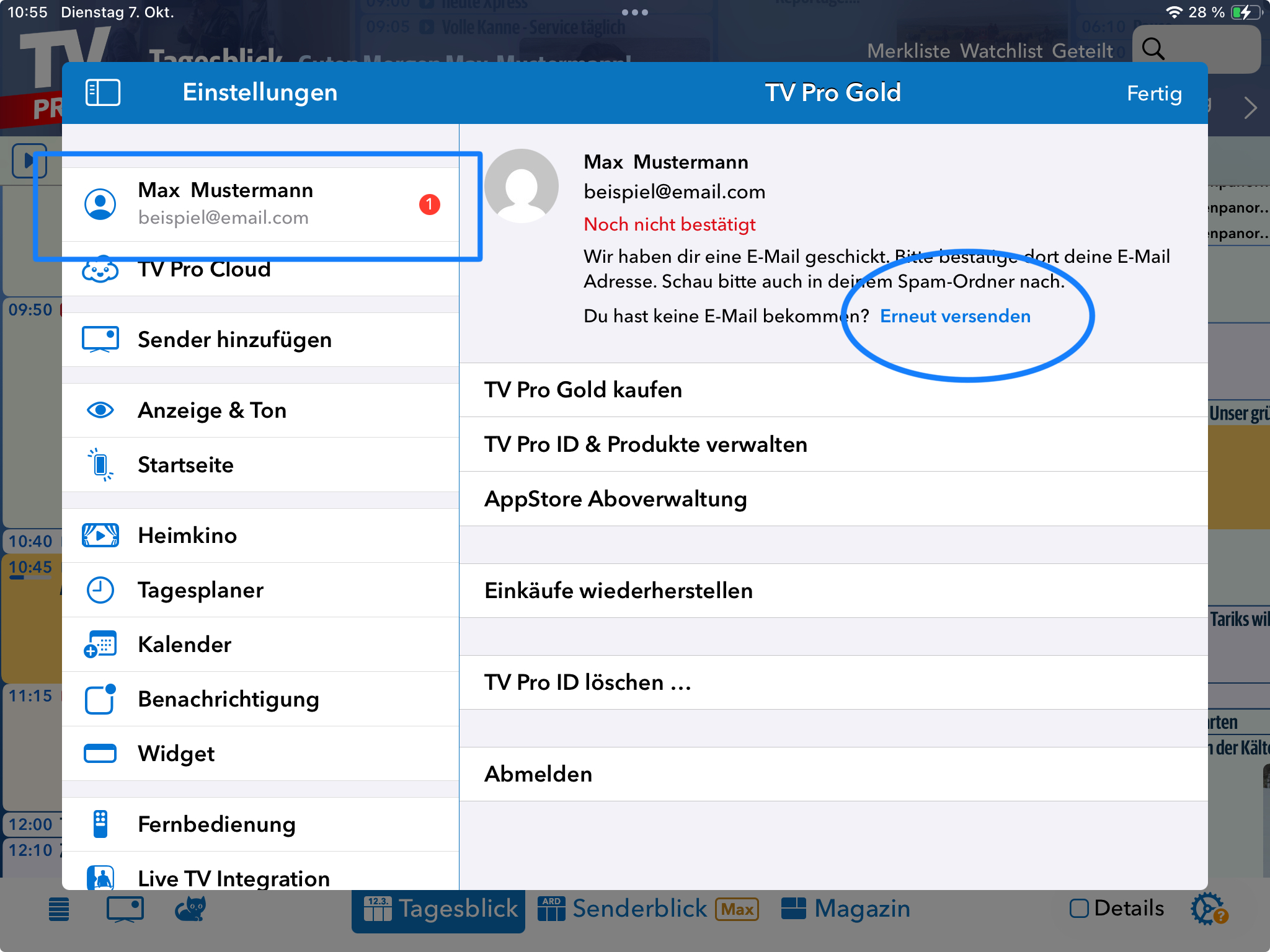
此類通知可能會令人驚訝——典型原因包括重新啟動、更新、電源中斷、路由器重新啟動或裝置在後台重新連線網路。家庭成員的使用也可能是觸發因素。
如果電子郵件中的資訊是可信的(例如,供應商或時間),通常是合法註冊——您無需做任何其他事情。
但是,如果資訊對您來說不熟悉,我們建議您採取預防措施並更改密碼。