ENDE
The #1 VPN Client for Mac, iPhone & iPad
Features
Teams
Tech Specs
Consultant Service
Pricing
FAQ & Support
Blog
Downloads


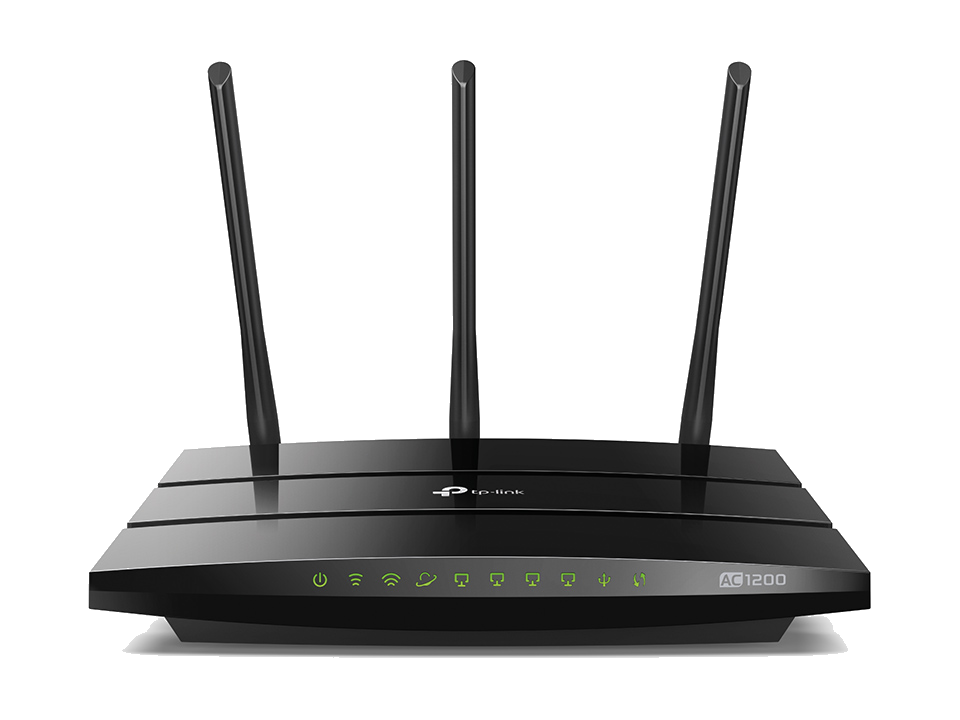
TP-Link Archer C1200 WiFi Router

The TP-Link Archer C1200 WiFi router is an excellent choice for home office and small business users. With strong WiFi performance and full TP-Link AC1200 VPN support, including OpenVPN, setting up a secure VPN connection is simple.
On this page, we guide you through the key technical specifications of the Archer C1200 VPN router and show you step by step how to configure an OpenVPN client connection on your TP-Link Archer WiFi router.

SeriesTP-Link Archer WiFi Routers
ModelC1200
Recommended forHome office (1-5 users)
Supported VPN standardsOpenVPN, PPTP
Built-in WiFiyes
WiFi performance1.2Gbps total available bandwidth
ProcessorSingle-Core CPU
Additional featuresDual-Band WiFi, Guest Network Access, Dynamic DNS, OneMesh support
Device StatusActive

Configure VPN for a TP-Link Archer C1200 WiFi router

Follow these steps to set up a TP-Link AC1200 VPN connection on your Archer C1200 router:
  1. Log in to your TP-Link Archer router's web interface and enable the OpenVPN server.
  2. Fill out your connection preferences and download the OpenVPN configuration file.
  3. Optional but recommended: Enable Dynamic DNS (refer to our configuration guide for more details.)


Set up a VPN connection to TP-Link Archer C1200


VPN Tracker is the best VPN client for TP-Link Archer C1200 routers. Follow these steps to start using your newly configured TP-Link AC1200 VPN connection on your Mac, iPhone, and iPad in VPN Tracker:
  1. Open the VPN Tracker Connection Creator for TP-Link Archer
  2. Drag and drop your .ovpn file to instantly import your OpenVPN settings
  3. Save your TP-Link AC1200 VPN connection in your account for secure VPN client access on all your devices

Connect to TP-Link Archer VPN