


ENDE
The #1 VPN Client for Mac, iPhone & iPad
Features
Teams
Tech Specs
Consultant Service
Pricing
FAQ & Support
Blog
Downloads
 
Fortinet SSL VPN setup on Mac in VPN Tracker 365

Use Fortinet SSL VPN on Mac with VPN Tracker 365

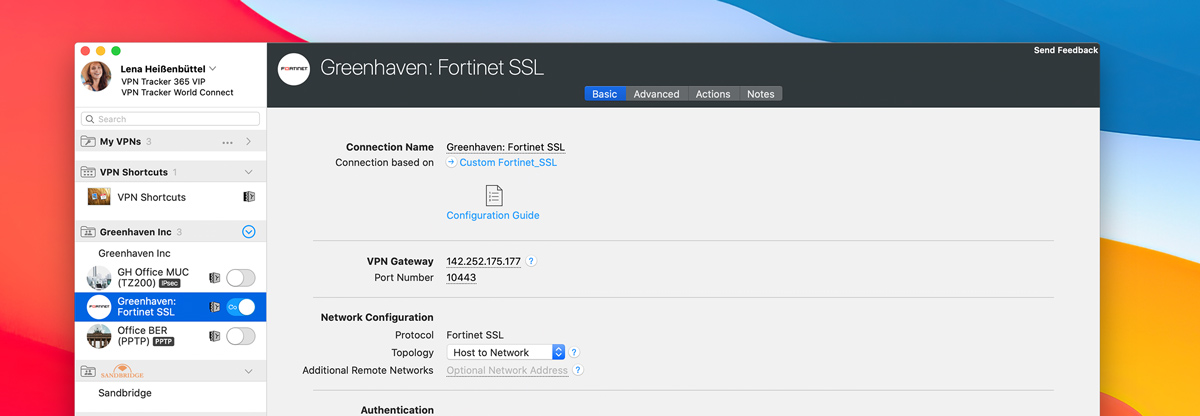
VPN Tracker 365 is the easiest way to connect your Fortinet SSL VPN on Mac. Whether you’re on macOS Sequoia, Tahoe, or an older version, VPN Tracker ensures a secure and reliable connection to your Fortinet firewall. No extra configuration tools are required – just add your connection and get started.

Why choose VPN Tracker for Fortinet SSL VPN on Mac?

  • Native macOS support: Fully optimized for Intel and Apple Silicon Macs.
  • Easy setup: Add your Fortinet SSL VPN connection directly in VPN Tracker.
  • Reliable connection: Features like InfiniConnect keep your VPN online at all times.
  • Powerful tools: Use Connection Checker, Personal Safe, and multi-connection support.
  • Team ready: Share Fortinet SSL VPN connections securely with colleagues via TeamCloud.

Fortinet SSL VPN setup on Mac

To use your Fortinet SSL VPN with VPN Tracker, you’ll need:

  1. Your Fortinet firewall’s SSL VPN gateway address (e.g. vpn.company.com)
  2. Your VPN username and password
  3. Optional: Client certificate if required by your administrator

Open VPN Tracker 365, create a new connection, and select Fortinet SSL VPN as your connection type. Enter the details above and connect. That’s it – no additional software is required on your Mac.

Start creating your Fortinet SSL VPN connection on Mac today.

Already using a legacy VPN Tracker license?

If you’re still on a legacy VPN Tracker license and want to use Fortinet SSL VPN, please switch to a current license. All current VPN Tracker 365 plans include full support for Fortinet SSL VPN on Mac.